

This article explains how prior knowledge tests work and how they are configured and displayed in Knowledgeworker Create.
Overview & Use Case
With prior knowledge tests, learners can demonstrate what they already know before viewing the actual learning content. This enables adaptive learning paths in which mandatory content that is already known can be converted into optional content or skipped altogether. As a result, learners save valuable time and can focus exclusively on new knowledge.
In Knowledgeworker Create, two options are available for testing prior knowledge:
Available by default: The pretest uses the exact same questions as the chapter whose content is being tested by the pretest. This version is suitable for simple assessments where you use identically scored questions in the pretest and the corresponding content chapter. If learners answer the questions in the preceding pretest correctly, the actual content chapter is automatically marked as completed. If answered incorrectly, the questions are repeated again in the corresponding chapter.
Learn more about setting up the default pretest in the article on including a pretest.
Available upon request: Advanced pretest feature stored in the layout theme and based on Sharable Content Objects (SCOs). This option supports using different questions in the pretest and the learning content. This enables granular testing of prior knowledge based on individual SCOs rather than entire chapters. Here, different and potentially more difficult questions can be asked in the pretest than in the actual learning content.
This pretest feature can be individually configured and is then activated in the layout theme. Contact Support or your Account Management contact to have the feature set up for you.
Prerequisites & Configuration for the Advanced Pretest Feature
Activation and Setup
Once activated in the layout theme, the feature is available in the course editor.
Configuring the Behavior
- Insert the pretest as a questionnaire: A pretest can be integrated as a questionnaire either into a content chapter or placed in a separate chapter before the actual content. Insert the Scored Questionnaire element at the desired location, adding multiple pretest questionnaires in the individual chapters if needed.
- Add questions: In the Questions tab, add the corresponding questions to the questionnaire. Pooling is also supported, allowing you to store a question pool of multiple questions from which a specific number is displayed via random selection.
- Define completion of SCOs: In the Test Prior Knowledge section of the questionnaire, decide which SCO or SCOs can be completed with this pretest questionnaire. To do this, select the SCOs from the drop-down menu.
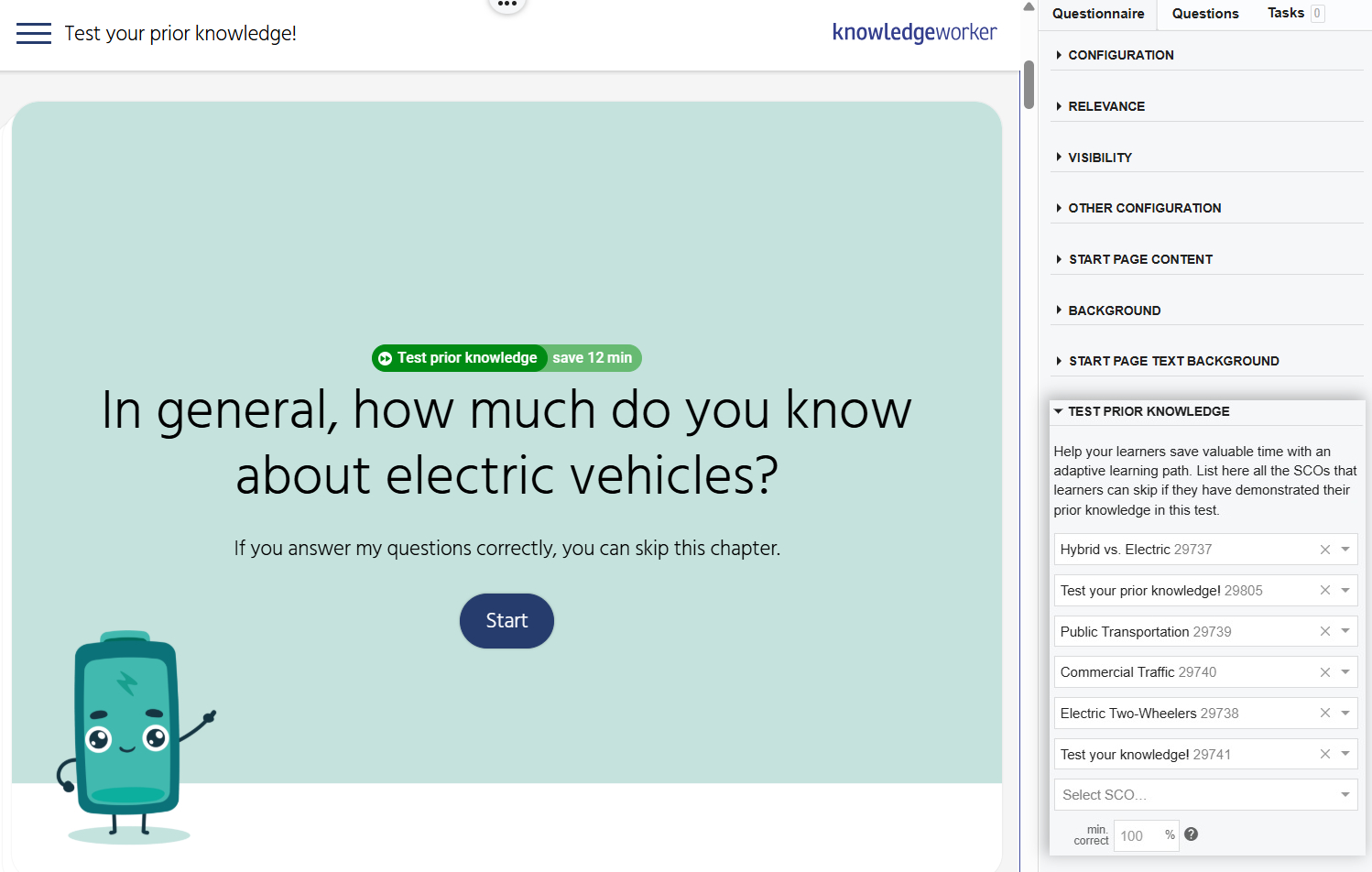
- Insert questions in the content chapter: Place scored questions in the SCO that test the knowledge if the pretest is not passed. These questions do not have to be the same questions as in the pretest; different questions, as well as fewer or more questions, can be used.
Scoring Logic
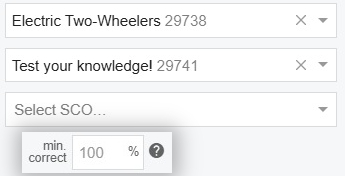
A defined score determines what percentage of the pretest questions must be answered correctly for the pretest and its associated SCO to be considered completed. If this threshold is not reached, learners must work through the actual SCO. Depending on the configuration, this affects course completion differently: completion can be based on chapters or on individual SCOs.
How the Prior Knowledge Test Is Displayed to Learners
Impact on Course Navigation
User guidance is controlled to efficiently reduce learning time. If learners answer all questions on the topic correctly, the chapter is immediately completed. On the results page of the pretest questionnaire, learners see additional navigation options: they can scroll down to view the contents of this SCO or use the “Next pending content” button to navigate directly to the next uncompleted chapter.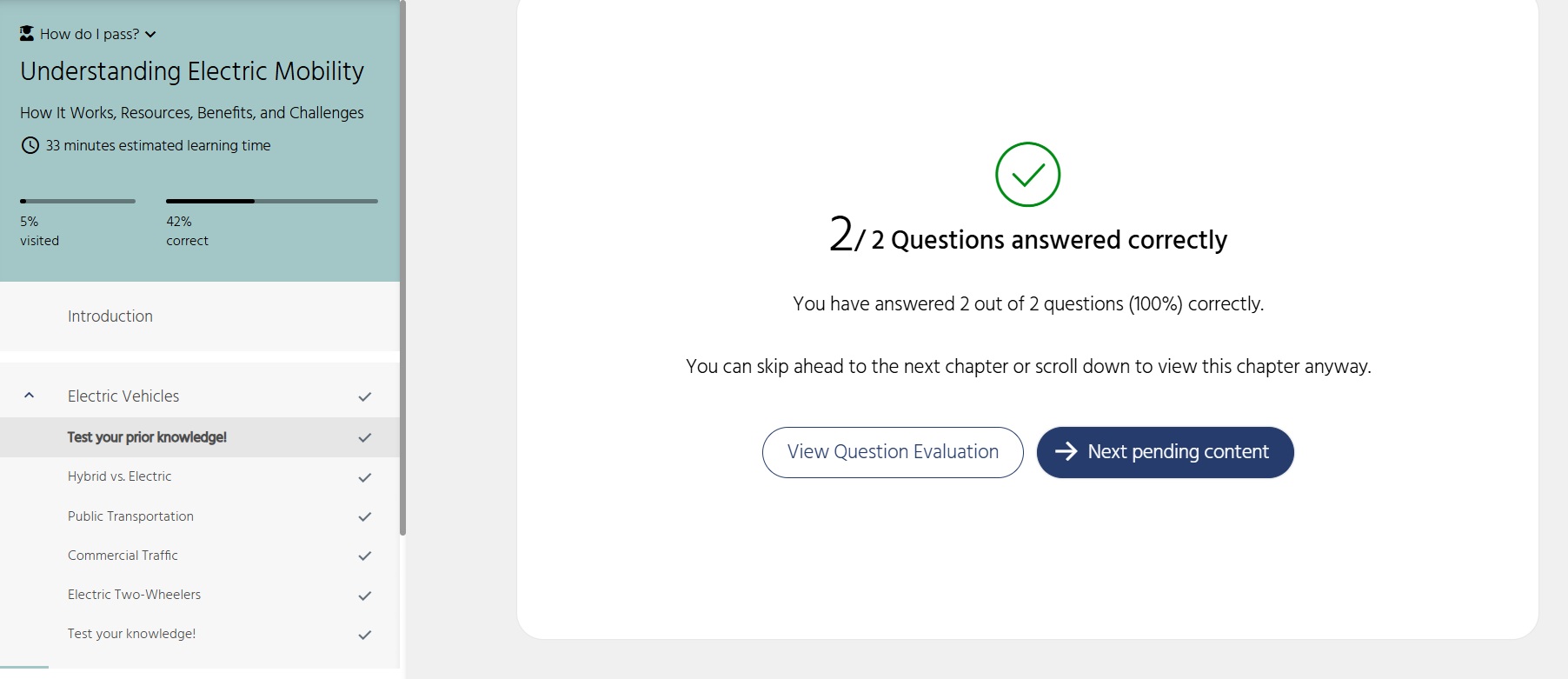
Display of Time Savings
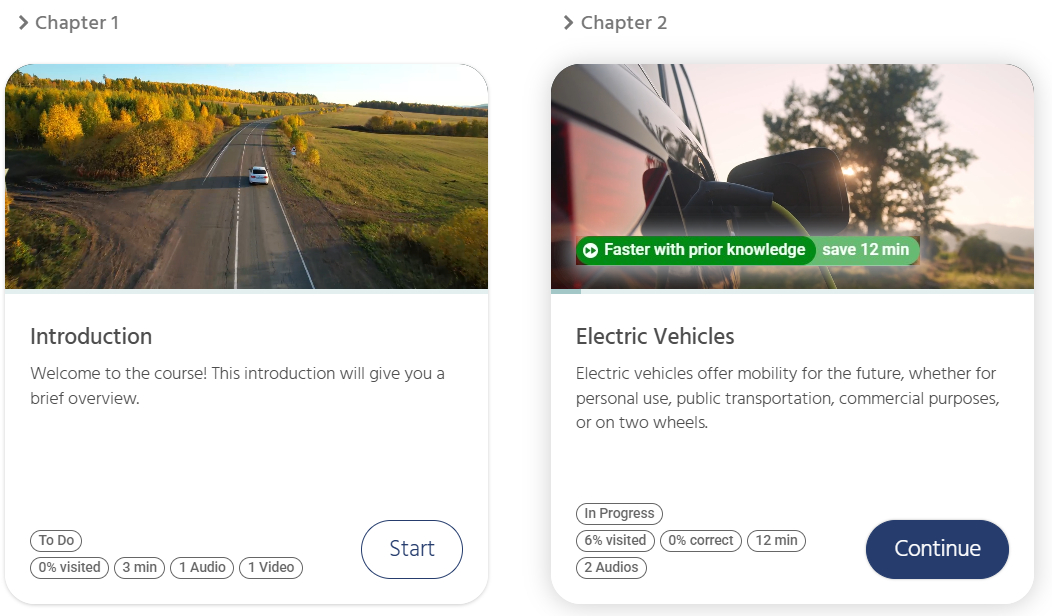
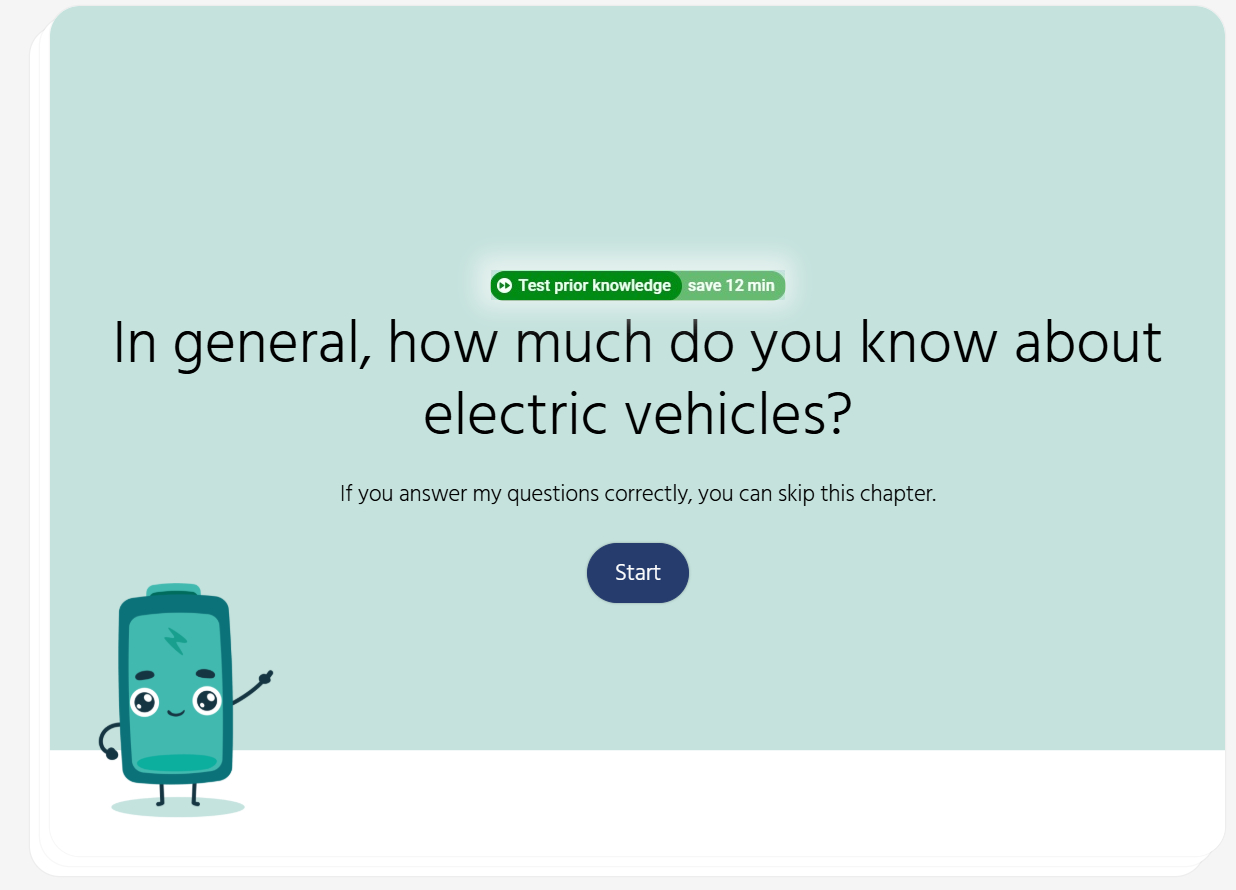
Once the estimated learning time is configured on the SCO, learners are shown the time saved for the pretest. This is displayed visually via the time savings indicator on the chapter overview page, in the status bar, and on the questionnaire start page. The time savings are automatically calculated from the learning time stored on the respective SCO. Learn more in this article on configuring learning time.
Was this article helpful?
That’s Great!
Thank you for your feedback
Sorry! We couldn't be helpful
Thank you for your feedback
Feedback sent
We appreciate your effort and will try to fix the article