

Even in an existing course, the course structure can be subsequently expanded to include chapters (Learning Objectives) and subchapters (Sharable Content Objects). In this article, you will learn how to proceed.
TABLE OF CONTENTS
- Editing the course structure
- Adding new Learning Objectives or Sharable Content Objects
- Adding existing Learning Objectives or Sharable Content Objects
- Changing the order of Learning Objectives and Sharable Content Objects
- Removing Learning Objectives and Sharable Content Objects from the course
- Identifying reused elements
- Further information
Editing the course structure
- Open the course in which you want to add a Learning Objective or a Sharable Content Object (SCO).
- Switch to the editor and open the Sitemap tab.
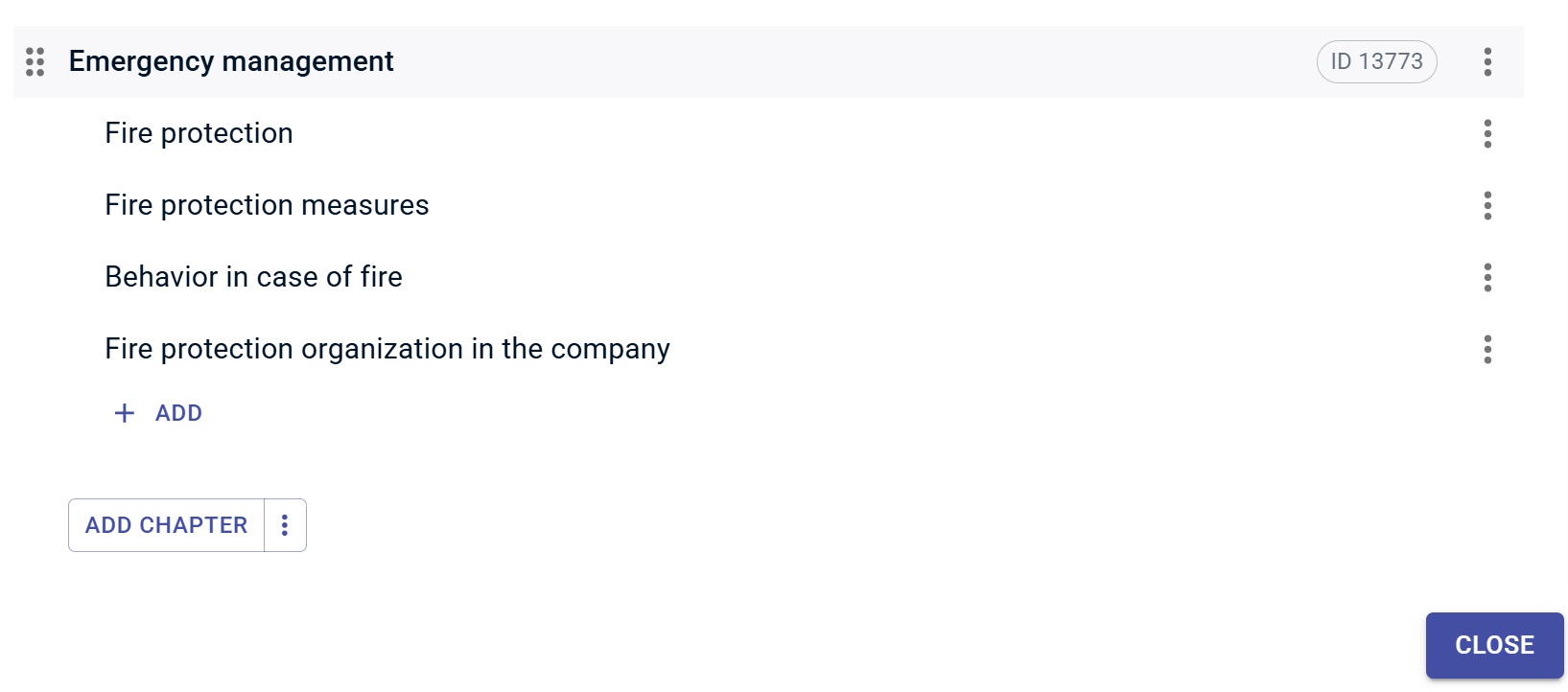
- In the upper area of the sitemap, open a popup using Edit, where you can make adjustments to the course structure.
Adding new Learning Objectives or Sharable Content Objects
You can add new and not yet existing Learning Objectives and SCOs as follows:
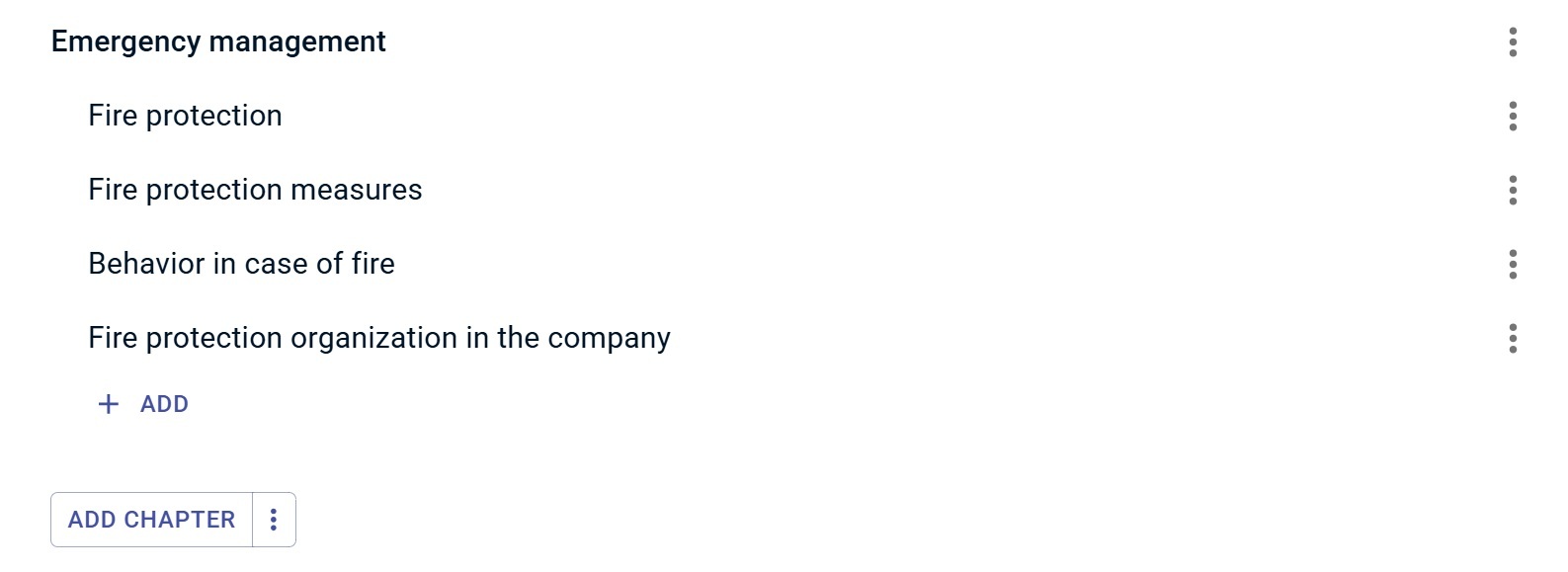
- Adding SCOs: Below each chapter, you can insert new SCOs via the Add button.
- Adding Learning Objectives: Below the course structure, you can insert new Learning Objectives via Add Chapter. Once you have created a new Learning Objective, you can use Add to create one or more SCOs for it or select existing SCOs from the menu. You can find more information on this in the next section.
Adding existing Learning Objectives or Sharable Content Objects
To add Learning Objectives or SCOs which have already been created in Knowledgeworker Create, proceed as follows:
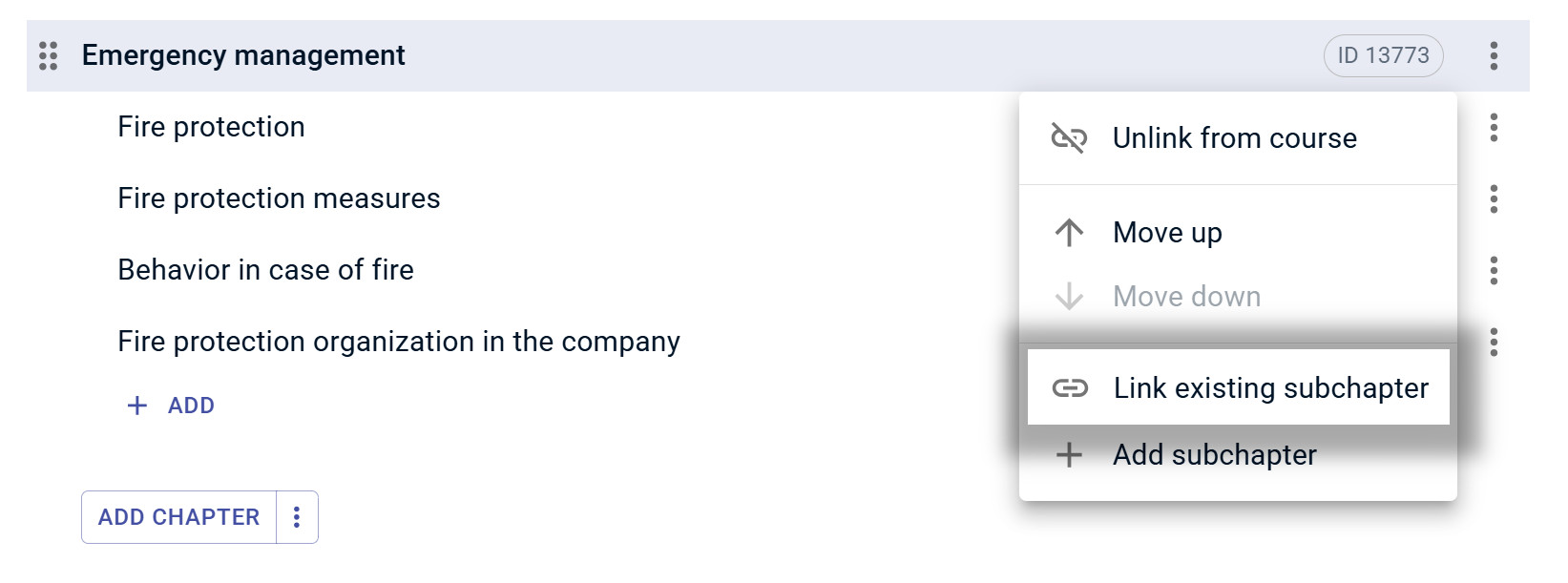
- Adding existing Learning Objectives: Open the 3-dot menu next to Add chapter at the end of the list. Select Link existing chapter and select the chapter from the library.
- Adding existing SCOs: Open the 3-dot menu next to the respective chapter to which you want to add the SCO. Select Link existing subchapter and select the subchapter from the library.
Changing the order of Learning Objectives and Sharable Content Objects
You can adjust the position of the chapter or SCO using the double-dotted line on the left side and move the element. Alternatively, you can move an element up or down one position at a time via the 3-dot menu on the element. 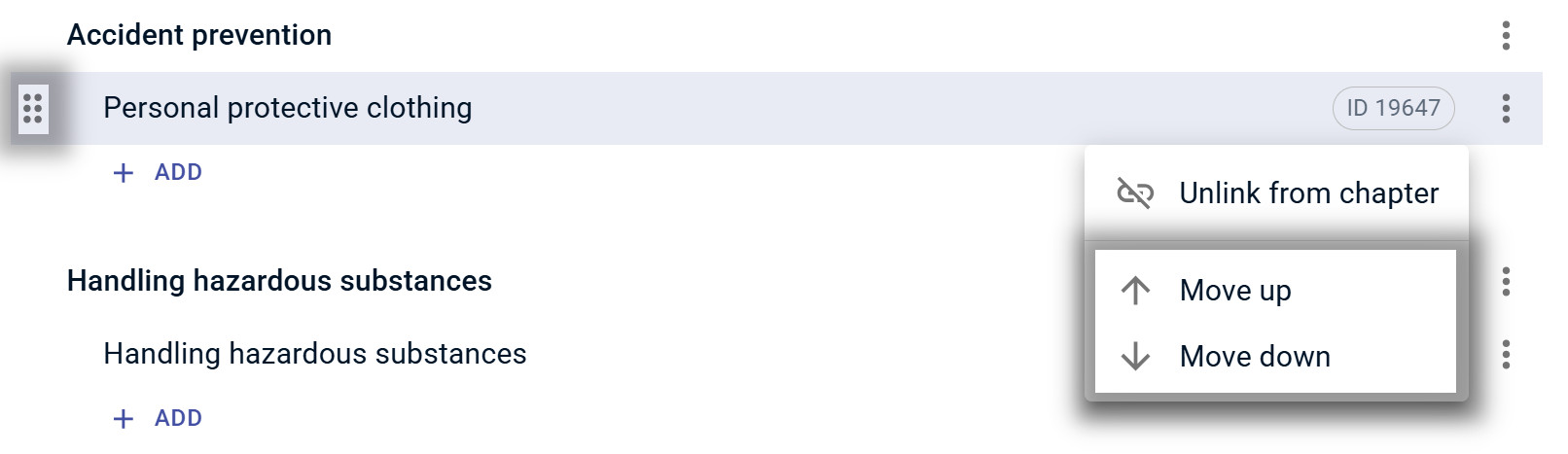
Removing Learning Objectives and Sharable Content Objects from the course
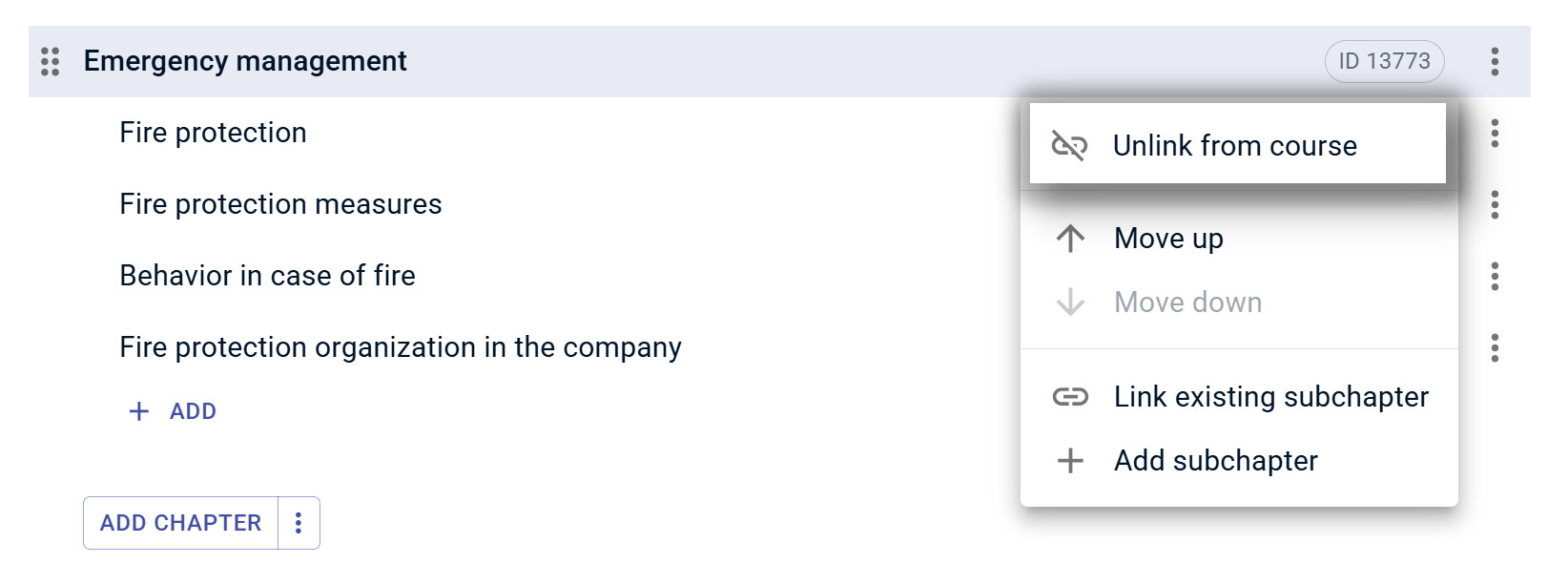
- Removing a Learning Objective from the course: Open the 3-dot menu next to the title of the Learning Objective on the right side and select Unlink from course. This option removes the chapter along with its respective subchapters from the course. The elements are not deleted and remain available in the library.
- Removing a Sharable Content Object from the course: Open the 3-dot menu to the right of the title of the SCO and select Unlink from chapter. This means the SCO is no longer linked to the chapter and the course.
Identifying reused elements
An arrow symbol indicates whether a Learning Objective or SCO is already in use. By clicking on the arrow, you can see in which Learning Objectives or courses an element is linked. Changes to a reused element affect all locations where it is used. 
Further information
- The ID of the respective element is displayed on the right when you hover over the title.
- The changes are saved directly. Please note that changes to the course structure affect all language versions of the course.
- With Close, you return to the editor.
Was this article helpful?
That’s Great!
Thank you for your feedback
Sorry! We couldn't be helpful
Thank you for your feedback
Feedback sent
We appreciate your effort and will try to fix the article